
Introduction
How To Create And Manage PMBx Mail Rules
- You will learn how to manage mail rules which prevent or permit emails coming from email addresses which are non-existent. Why would you want to do this?
- One trick spammers use to prevent their spam email from being returned to them is to forge the "from" address on their junk.
- Though our mail server can automatically do a "reverse check" and reject such email, there are some legitimate senders that also use fake sending addresses, such as "no-reply@somedomaind.com." These can be important emails such as airline ticket confirmations, etc., particularly for southeast Asian airlines.
- Because I do not have the ability to reject emails which fail the reverse check on an email box by email box basis, I have in the past chosen to reject them all. This suits most everyone unless they are trying to get some important email such as a password reset email or a flight confirmation.
- I have perfected a feature that allows each email box user to do this for themselves. It is not hard, and I'm going to provide step-by-step instructions to configure this to suit each person.
Login
1. Log in to your email box using Pronto
- You will manage your mail rules using the PMBx built-in web mail interface called Pronto.
- Go to https://mail.pmbx.net/hpronto/ by clicking on the button or copying the link in a new browser window or tab.
- You will see the Pronto! login as shown.
- Log in using your email address and your password.
Webmail Interface
2. Below is what my webmail interface looks like after I log in.
- Here is a screen clip of what I see after I log in.
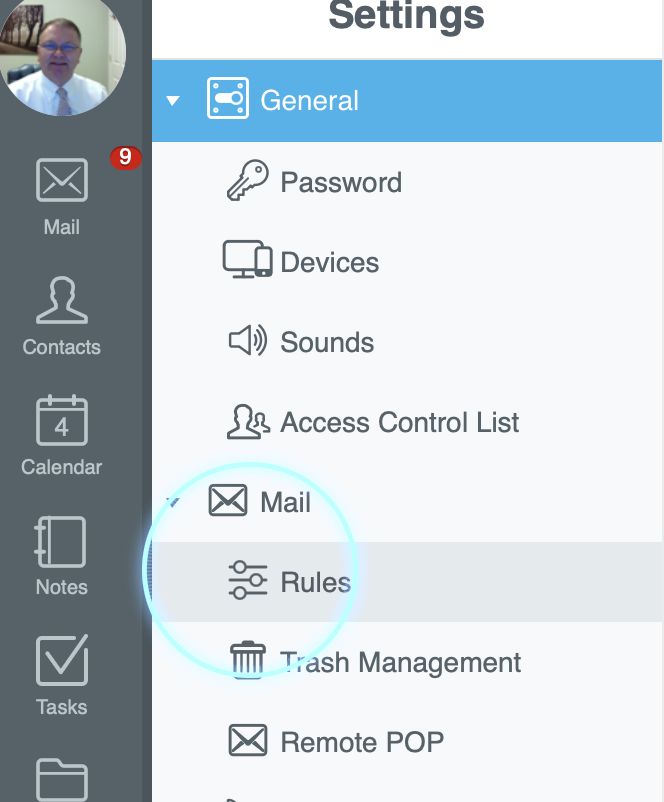
- First, click on Preferences at the bottom of the left sidebar.
- Then click on "Rules" below the Mail icon as shown withe the blue circle.
Webmail Interface
3. The Mail Rules List
- Here are my two rules that allow me to manage incoming email which has a fake "from" address.
- The first rule has a priority of 5. The second rule is Inactive.
- I've entitled the rules "Reverse Check - Fake From Address" and "Discard Reverse Check Fails," but you are free to name these as you prefer.
- The gear button allows you to alter each rule.
- The trash can button allows you to delete a rule.
- To add a rule you click the "+" button.
- Click on the "+" button to add the "Reverse Check" rule.

The Reverse Rules
4. Add Reverse Check Rule
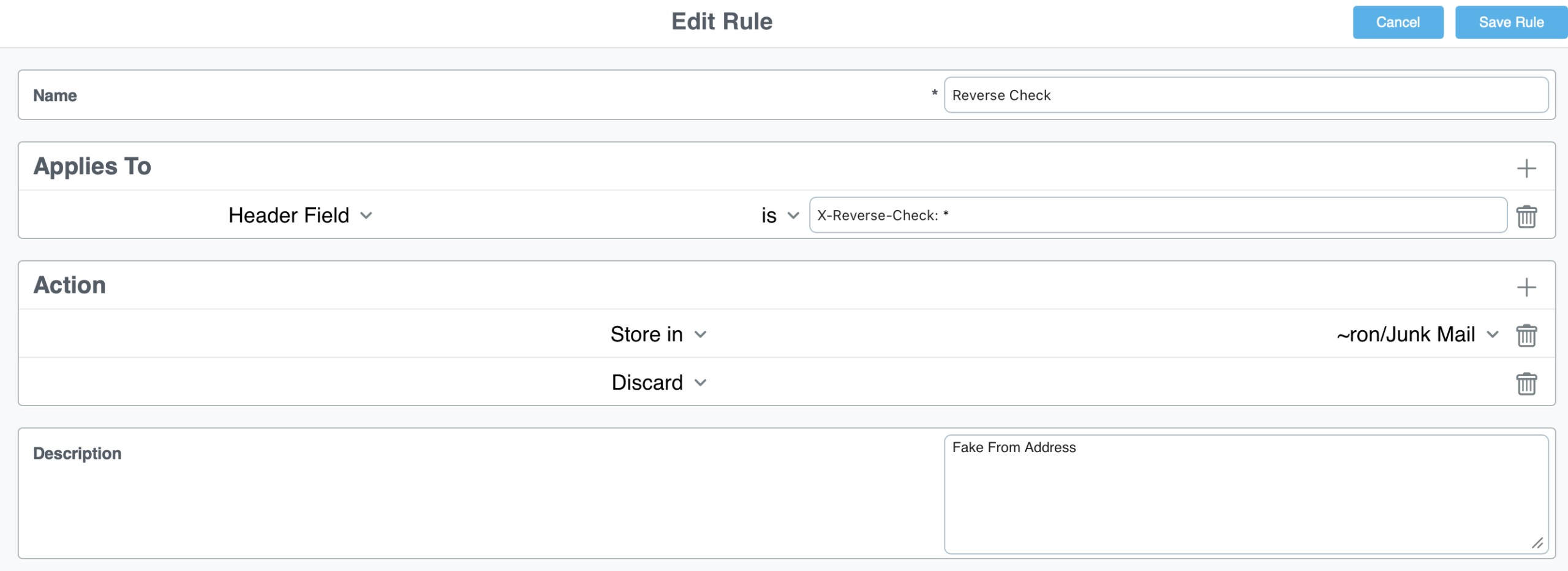
- 1. Click on the "+" button. Then click on the "Expert Mode" button. In the Name field, type "Reverse Check" or something similar.
- 2. Click on the "+" icon to the right of "Applies To" to enter the conditions that trigger the rule.
- 3. Under "Applies To" select "Header Field" as
- EXACTLY as shown (WITH ASTERISK) from the drop-down list.
- 4. In the box next to "is," copy or type exactly this: "X-Reverse-Check: *"
- 5. In the "Action box," use the "+" button to add the two actions exactly as shown. Select the "Store in" and "Discard" popups and select YOUR "Junk Mail" box by selecting it from the drop-down list. It should look similar to mine. Then click "Save Rule."
The Discard Rule
5. Add The Discard Rule
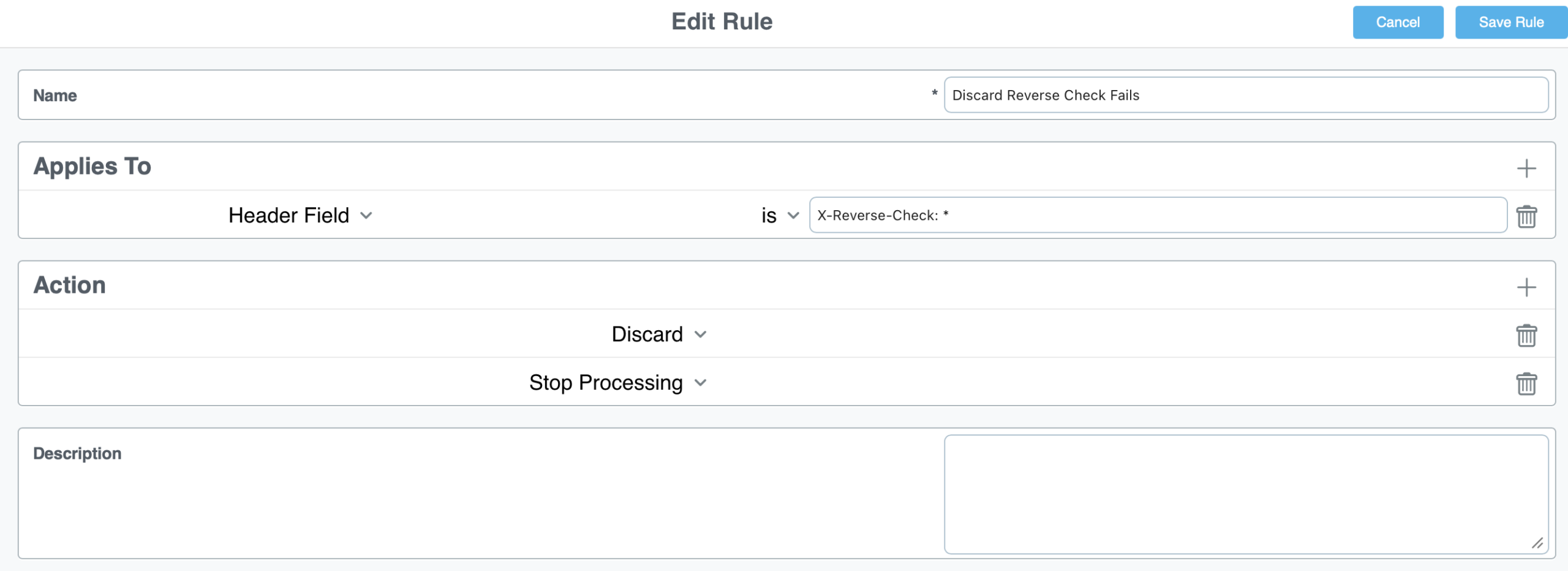
- 1. Click on the "+" button, then again on the "Expert" button. In the Name field, type "Discard Reverse Check Fails."
- 2. Under "Applies To" select "Header Field" as shown from the drop-down list.
- 3. In the box next to "is," copy or type exactly this: "X-Reverse-Check: *"
- 4. In the "Action box," use the "+" button to add the two actions exactly as shown. Select the "Discard" and "Stop Processing" popups. Then click "Save Rule."
Rule Activation
6. Rule Activation
- Back at the rules list, you activate or inactivate the Discard rule that tells the PMBx server whether to keep or discard emails with faked sender addresses.
- Be sure and click "Apply" after you change any of the following.
- I suggest you set your "Reverse Check - Fake From Address" to a priority of 5.
- If you set "Discard Reverse Check Fails" to "Inactive," then faked emails are saved in your Junk Email, allowing you to view them.
- If you set the priority to anything higher that the "Reverse Check" rule, then ALL faked sender email will be irretrievably discarded.

Prev
Next